How your board is organized
Published · Last updated
Agiflow keeps a project's goal, related work, individual jobs, and progress signals in one shared structure. The same structure is visible on the board and to connected AI assistants through MCP.
At a glance
Projects contain work units and tasks. Statuses turn tasks into board lanes. A blank project uses Agiflow's default lanes, while a template-created project can use project-specific names and ordering.
Read the lanes from the project you are working in. In the UI, they are board columns. Through MCP, list_project_statuses returns the valid statuses for the connected or selected project.
Projects, work units, and tasks
Projects set the boundary
A project is the boundary for a goal, product, campaign, or client. Its board, files, settings, and connected AI context stay together, preventing work from one project from being mistaken for work in another.
Work units group related work
Work units collect tasks into meaningful streams, such as research, production, or distribution for a launch. They make a large project easier to review without changing its task lanes.
Tasks are the jobs that move
A task is an individual job with a title, description, priority, status, and optional acceptance criteria. It can belong to a work unit or sit directly in the project. Its status determines where it appears on the board.
Statuses and board lanes
Default lanes and what they mean
Blank projects resolve to Agiflow's default columns: Planning, Todo, In Progress, Testing, Review, Done, Blocked, and Cancelled.
- Planning: Work is being refined.
- Todo: Work is ready to start.
- In Progress: Work is underway.
- Testing: Work is being validated.
- Review: Work awaits approval.
- Done: Work is complete.
- Blocked: Work needs intervention.
- Cancelled: Work will not continue.
Custom lanes come from the project
Templates can seed different names and ordering. A marketing project can reflect a publishing flow, while a sales project can reflect a deal pipeline. The project is the source of truth for its available statuses, so do not assume the default list applies everywhere.
UI guide: Read your project board
Prerequisites
You need access to the project in your Agiflow organization. If the project is assigned through a team, your organization membership must include that team.
Steps
- Open the project in Agiflow.
- Select the Board view if another project view is active.
- Read the column headings from left to right. They are the statuses available to tasks in this project.
- Use a work unit filter to focus on one stream. Filtering changes visible tasks, not lane definitions.
Expected result
The board displays one column for each resolved project status. A blank project still shows default columns when it has no tasks. A template-created project can show custom names and ordering.
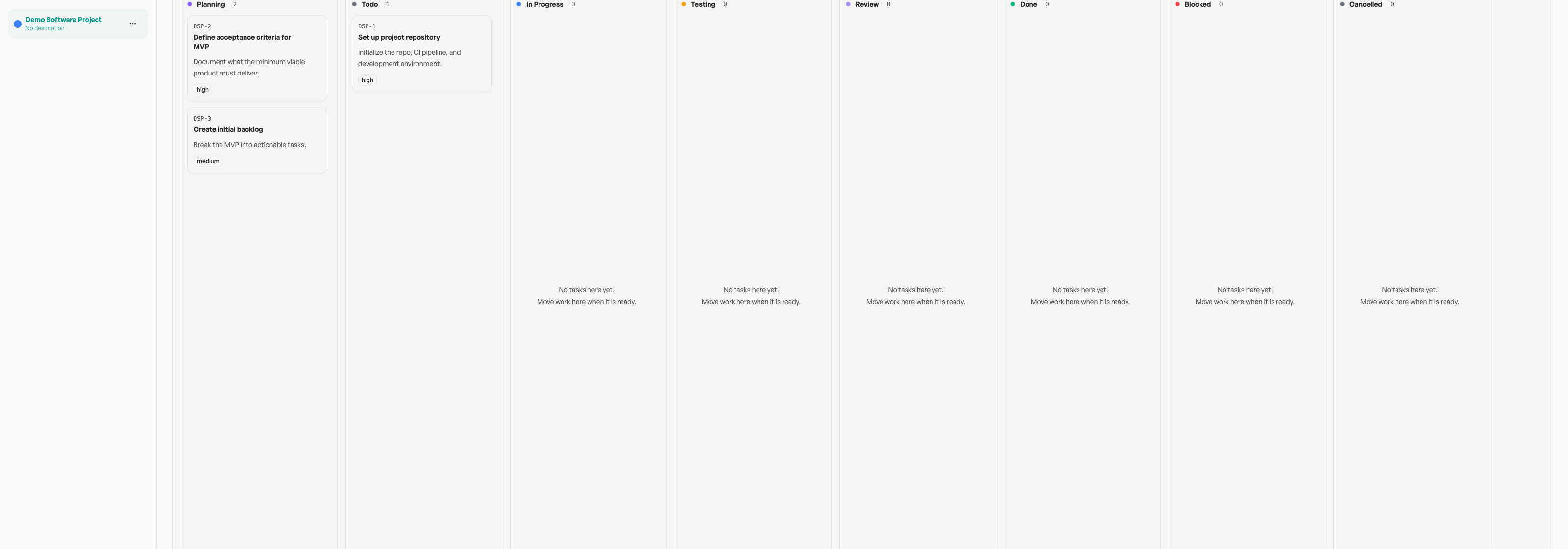
Verify the lanes
Open a task's status control and compare its available names with the visible board columns. They should describe the same project workflow.
Limitations and recovery
This path explains how to read current lanes. It does not mean every member can create or edit status definitions. If a project is missing, confirm the organization and team access. If its names differ from another project, use the lanes shown on the current board.
Templates, files, and team access
Templates shape starting lanes
Templates give a new project a workflow suited to its purpose. They can seed project-specific statuses and starter tasks, which is why projects in the same organization can have different lanes.
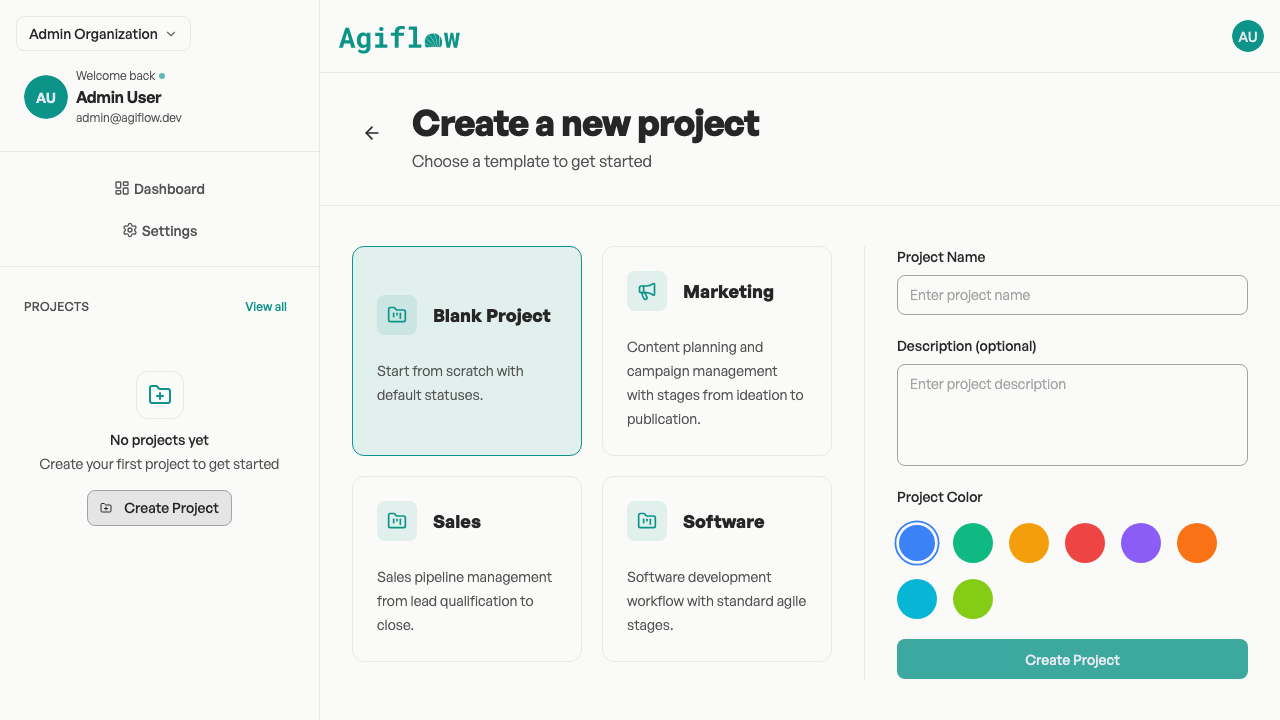
For the creation flow, see Start from a project template.
Files keep project context together
The Artifacts view keeps shared files with the project rather than attaching the same context to every task. A specification or brand guide can support many work units and tasks on the board.
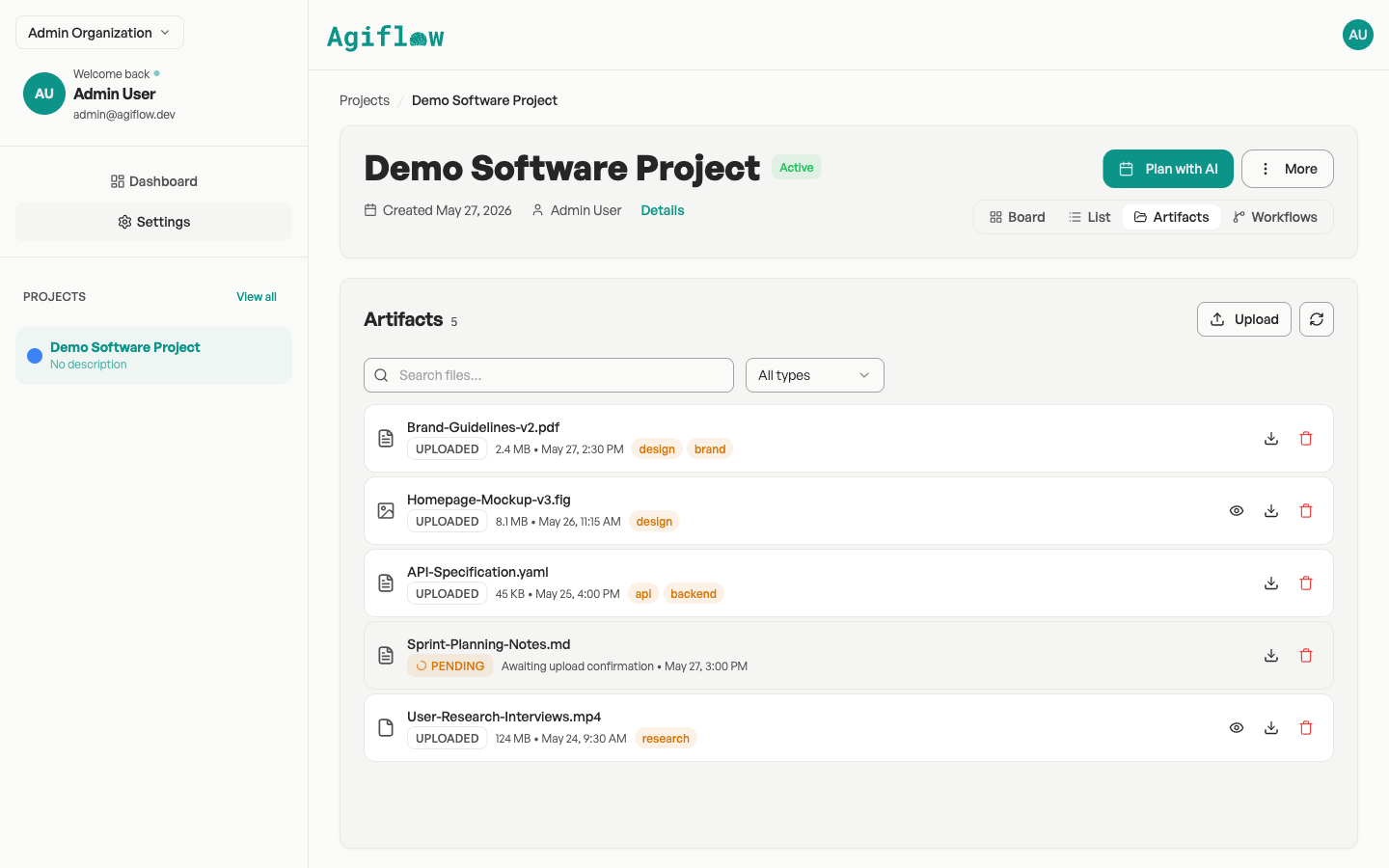
For file procedures, see Manage project files.
Team access sets the boundary
Projects live inside an organization, and team assignments determine which projects a member can access. Connected AI tools work within the access approved for their connection, so project scope is both an organizational and safety boundary.
For membership procedures, see Invite your team.
The lane names shown in a project's board or returned by its connected MCP session are the names to use for that project.
Where to go next
Once the board structure is clear, use these guides to create a project, work with tasks, or keep project context organized.