How to complete one task and keep the board current
Complete one ready task from the project board or with an authorized AI assistant. Both paths record evidence on the task and leave its verified status visible on the Agiflow board.
Project board
Complete a task from the project board
Prerequisites
- You are signed in and can open the project.
- One clearly scoped task is ready to start, usually in Todo.
- The task has enough description or acceptance criteria to verify the result.
If the task is still in Planning, clarify its requirements before starting.
Select, complete, and update the task
- Open Projects, select the project, and stay on Board.
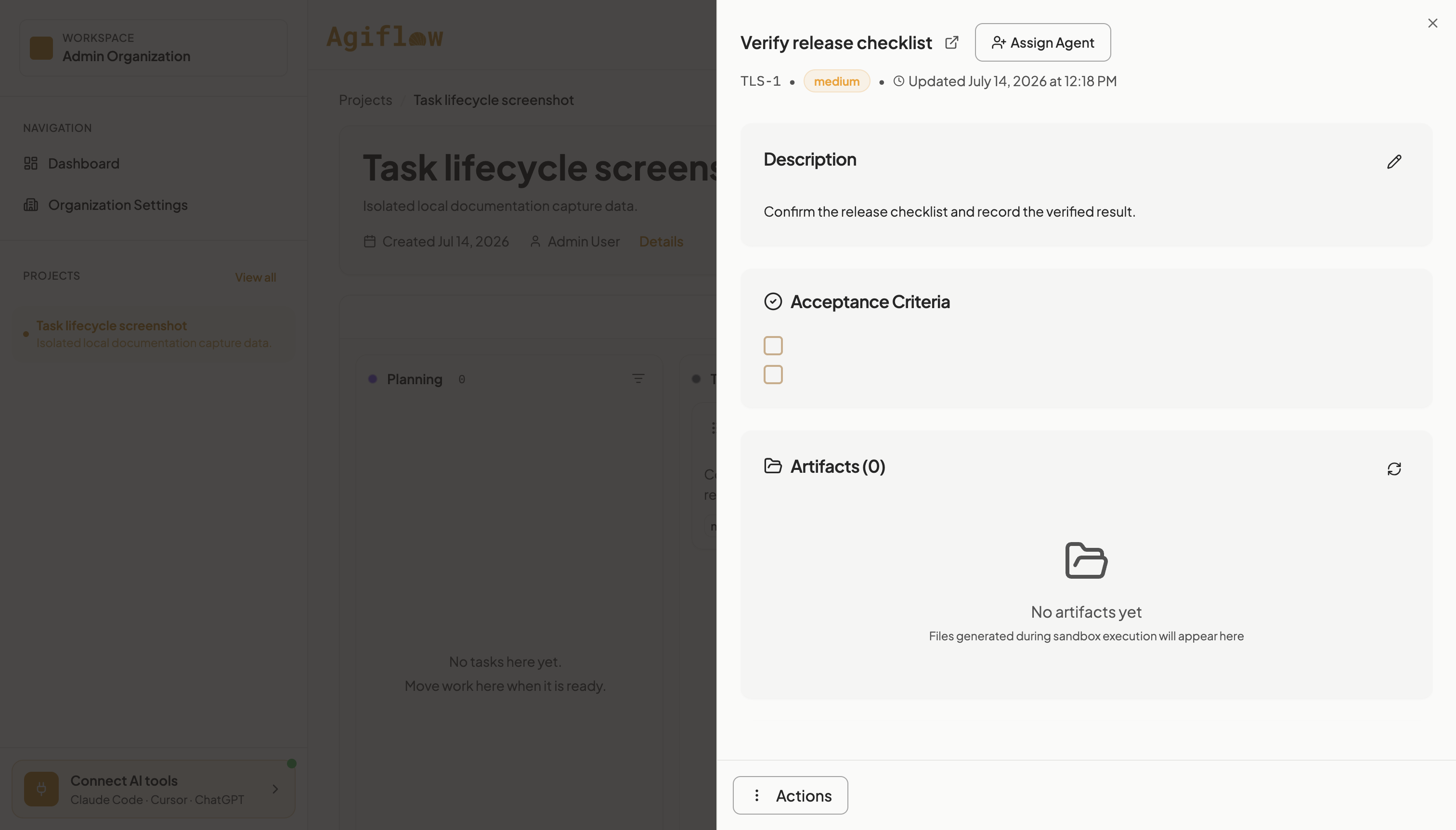
- Select one card from Todo. The task opens in a quick view while the board remains visible behind it.
- Confirm the task slug, description, acceptance criteria, test cases, comments, and attached evidence.
- Open Actions, select Edit Task, change Column to the active-work column, usually In Progress, then select Update Task.
- Complete the work in the appropriate application. Return to the task to add a comment or artifact and review the evidence.
- After verification, update the task to Testing, Review, or Done. Use Done only after acceptance.
Give the task limited third-party tool access
Skip this section when the task does not need an outside service. If it does, configure the service once for the organization, then select only the actions required by this task.
- An organization owner opens Integrations, Connected, then selects Connect Tool.
- Enter the tool name and HTTPS connection address. Choose Secure sign-in for OAuth or Secret key for an API key, then complete the provider's authorization.
- Open the task, select Actions, then Tools & access.
- Expand the connected tool, search its actions, and switch on only the actions needed for the task. The selected count updates as access changes.
- Reopen Tools & access and confirm every required action is marked Selected. The assigned assistant cannot use unselected actions from that connection.
Third-party OAuth and secret keys are stored with the organization's Connected Tools. They are separate from the OAuth tokens and API keys used to connect an assistant to Agiflow itself.
Expected result
The task card appears in the correct board column. Its quick view contains enough context and evidence for another person or assistant to understand what was completed and what still needs review. If the task uses a third-party service, Tools & access shows only the actions approved for this task.
Verify the outcome
Reopen the task and confirm its slug, current column, acceptance criteria, test cases, comments, artifacts, and updated time. Close the quick view and confirm the same card appears in the expected board column.
Limitations and recovery
Agiflow records and coordinates the work, but it does not perform the task itself. Project templates can use different column names from the defaults.
If an update fails, Agiflow reverts the change. Refresh the board, reopen the task, and retry. If work cannot continue, move it to Blocked and add a comment that states what a person must do before it can resume.
Refer to How your board is organized to confirm how the project uses task columns.
The board and an authorized assistant use the same saved task state. The board stays visible behind a quick view, while the assistant returns task context and a link back to the board.
Last updated July 12, 2026
Keep the board moving
Finish with completed work that remains visible and reviewable on the project board.
Was this guide helpful?