What Agiflow can do
Agiflow gives you and your AI assistant one shared project board. Plan in the browser, ask a connected assistant to help, or switch between the two. The durable result is visible work you can review before it moves forward.
At a glance
Agiflow helps turn a goal into Planning tasks, make each task clear enough to complete, and choose approved tasks that are ready for Todo. The browser gives you direct control of the board. A connected AI assistant can work with the same scoped project data through Agiflow tools.
The paths are complementary, not identical. Your role and the assistant's authorized scope determine which actions are available. Planning creates tasks in Planning. Backlog grooming can group related work and move approved tasks to Todo.
Three capabilities, one shared board
Plan a project
Turn a broad goal into reviewed tasks in Planning. Create work units directly in the browser, or use backlog grooming to group related ready tasks later.
Clarify a task
Give the same task clear context and a measurable completion condition without changing its original scope.
Choose ready work
Keep proposed or unclear work in Planning, then promote only approved and actionable tasks to Todo.
Use Agiflow in the browser
The browser path is for seeing the whole board and making each decision directly. It produces the same outcome as the assistant path: reviewed Planning tasks, clearer task details, and an approved Todo set.
Prerequisites
Sign in and open a project you can access. Project creation and management controls depend on your organization role. Owners and admins can manage projects, while regular members may have a read-only project list.
Plan a project
Open Projects, then select New Project, or Create Project when no projects exist. Choose a template, complete the project details, then use More to add a New task or New work unit. Keep early tasks in Planning.
Clarify a task
Open a task and select Edit Task. Review its Task Title, Description, Column, Priority, and Work Unit (Optional), then select Update Task when the task has enough context and a clear completion condition.
Choose ready work
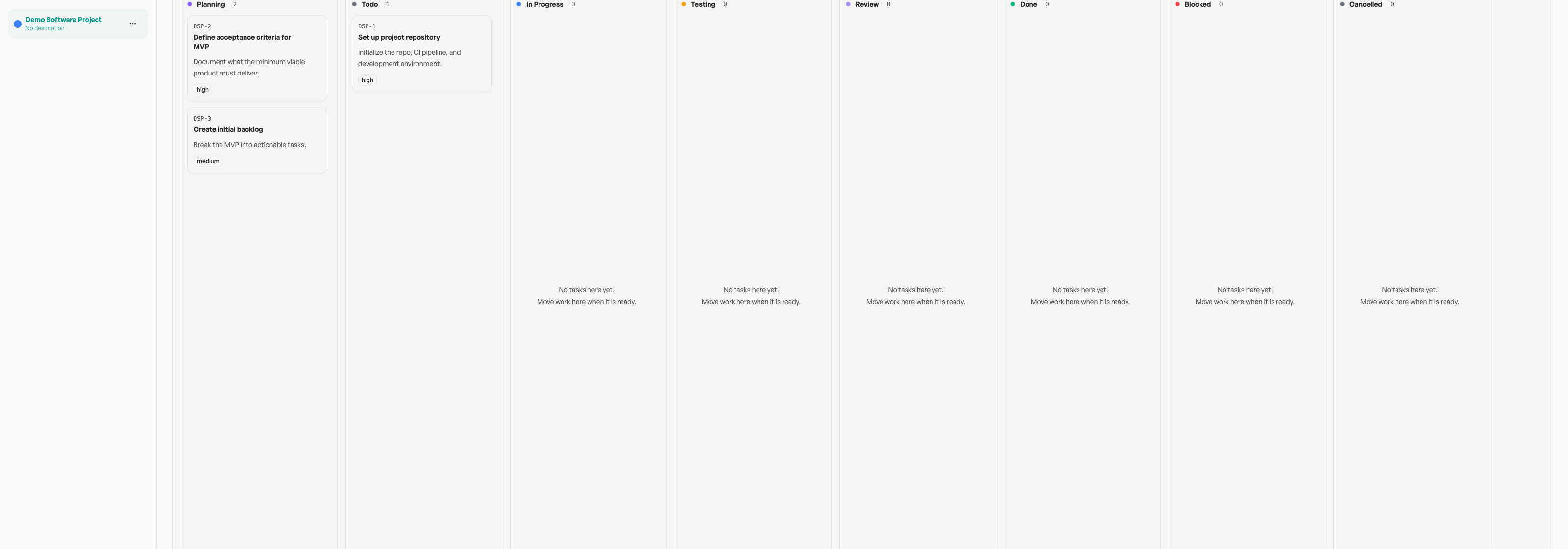
Use Board for lane context or List for a compact review. Leave unclear or blocked work in Planning and move only approved, actionable tasks to Todo.
Expected result
Planning holds proposed or incomplete work. Todo contains a smaller set that someone can start with confidence, with enough context to understand its purpose and done state.
Verify the board
Confirm the project name, expected tasks, refined details, and the tasks in Todo. Projects can use custom lanes, so check the lane names visible on that board before moving work.
Limitations and recovery
- If project controls are unavailable, ask an organization owner or admin for help.
- If a task lacks context, leave it in Planning and refine it before promoting it.
- Follow custom lane definitions rather than assuming every board uses the default statuses.
What stays shared between both paths
The browser and the assistant are two interfaces over the same scoped project data. A task clarified in a conversation can be reviewed on the board, and a task moved in the browser is available to the next authorized assistant session. The shared state still has useful boundaries: Planning remains separate from Todo, authorization limits access, and templates define the valid workflow for each project.
Next steps
Use the browser for direct review and a connected assistant for supported, scoped help. Both paths are most useful when the board remains the place where the approved state is visible.