Agent integration
Connect Claude Code to your Agiflow board
Let Claude Code inspect projects, plan work, update tasks, and run Agiflow workflow skills from your terminal over a browser-authenticated MCP connection.
Connects over the Agiflow MCP server with browser-based Agiflow sign-in. The plugin path auto-wires the MCP server through the bundled .mcp.json.

Run coding work from the board, not a pasted brief
Claude Code is Anthropic's terminal coding agent. Connect it to Agiflow and it can work with the same projects, tasks, work units, workflows, comments, members, and vault entries your team tracks on the board.
Use the Agiflow AI Plugin when you want Claude Code to load Agiflow's MCP server and workflow skills together. Use the direct MCP setup when you only need the hosted Agiflow MCP connection. Either way, Agiflow stays the system of record while Claude Code acts through the access you authorize.
What Claude Code can do with Agiflow
- Inspect Agiflow projects and the work already assigned to them.
- Create, list, update, reorder, and batch-create tasks from terminal work sessions.
- Group work into work units so implementation stays tied to deliverable features or epics.
- Coordinate workflow locks for multi-agent or long-running work.
- Read and write task comments so decisions stay attached to the board.
- Use vault entries and project context when your authorized Agiflow scope allows it.
- Load Agiflow workflow skills from the AI Plugin for planning, grooming, running, reviewing, triage, standup, and orchestration.
Claude Code acts only through the tools Agiflow exposes and the access you authorize. Agiflow uses resource-bound consent for the organization or project you select, so there are no broad, named permission scopes to grant — vault and workflow actions stay governed by the connected user's permissions and the selected resource.
Set up Claude Code with Agiflow
Choose the plugin path when you want the Agiflow MCP server and Agiflow workflow skills loaded together. Choose the direct MCP path when you want to add the hosted Agiflow MCP server to Claude Code yourself.
For Claude Code and other coding agents, use https://agiflow.io/api/v1/mcp. Do not use /api/v1/mcp-app/0.0.3 — that endpoint serves the ChatGPT app/widget MCP surface.
Option A — Agiflow AI Plugin
Loads the Agiflow MCP server and Agiflow's workflow skills together.
Clone the Agiflow AI Plugin
git clone https://github.com/AgiFlow/ai-plugin.git agiflow-ai-pluginStart Claude Code with the plugin directory
claude --plugin-dir ./agiflow-ai-pluginThe bundled .mcp.json wires the Agiflow MCP server automatically.
Check the connection
/mcpRun /mcp inside Claude Code to confirm Agiflow is connected.
Authenticate and start working
If prompted, sign in to Agiflow in the browser and approve the workspace or project Claude Code can use. Then call Agiflow's loaded skills to plan, groom, run, review, triage, summarize standups, or orchestrate work.
If your deployment uses a different Agiflow MCP endpoint, set the plugin override before launching Claude Code:
export AGIFLOW_AI_PLUGIN_MCP_URL="https://mcp.your-agiflow-instance.com/api/v1/mcp"Option B — Direct MCP connection
Adds the hosted Agiflow MCP server to Claude Code without the plugin bundle.
Find your Agiflow connection URL
In Agiflow, open Settings → Connections and copy the URL shown.
Add Agiflow as a remote HTTP MCP server
claude mcp add --transport http agiflow YOUR_AGIFLOW_URLOpen the connection menu
/mcpFind Agiflow in the list, select Authenticate, and sign in through the browser window that opens.
Choose your scope and approve
Pick the organization or project Claude Code can use and approve access.
Test the connection
What projects are in my Agiflow workspace?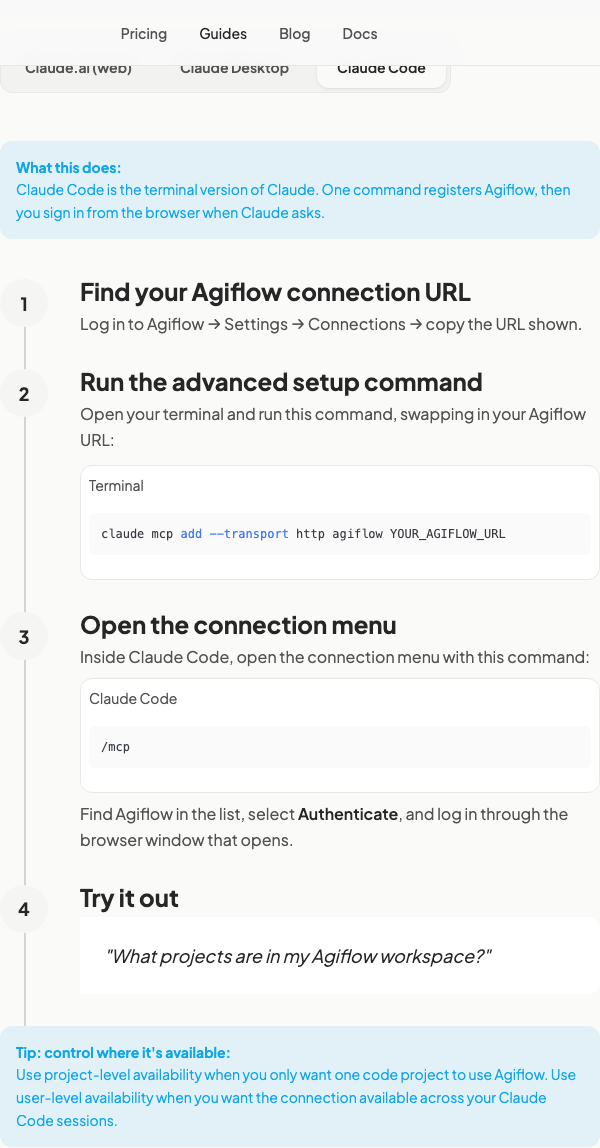
- Keep Claude Code's default local scope to make the connection private to the current project.
- Use
--scope projectto share a.mcp.jsonentry with your team in the repo. - Use
--scope userto make the connection available across all your Claude Code sessions.
Try Claude Code with your board
Once Agiflow is connected, ask Claude Code to work from the board:
- “What projects are in my Agiflow workspace?”
- “Summarize the active work units for this project.”
- “Turn this implementation plan into Agiflow tasks.”
- “Start a workflow for this task and keep the board updated.”
- “Add a comment with the decision we just made.”
You might also use

Connected. Now what?
Follow the tutorial that takes one feature from a sentence to shipped work: plan it, refine it, groom it, execute it, and review it against its acceptance criteria. Every prompt is written out, with a screenshot of what you should see.
Run product developmentBuild your own integration
Agiflow speaks the Model Context Protocol, so any MCP-compatible client can read and update your board.
Read the docs