Connect ChatGPT to your Agiflow board
Open the Agiflow app in ChatGPT, choose the workspace or project ChatGPT can use, and ask it to work from live project context.
Connect through ChatGPT, then approve the Agiflow scope you want to share.
Use ChatGPT with your Agiflow project context
ChatGPT is OpenAI’s AI assistant. With the Agiflow ChatGPT app, ChatGPT can read and act on the Agiflow board you authorize, including projects, tasks, work units, comments, organization summaries, artifacts, and scoped workflow context.
The connection uses Agiflow’s MCP server through the published ChatGPT app, so you connect from the ChatGPT listing, approve access with Agiflow, and choose the workspace, project, or task ChatGPT can use.
What ChatGPT can do with Agiflow
Review project context
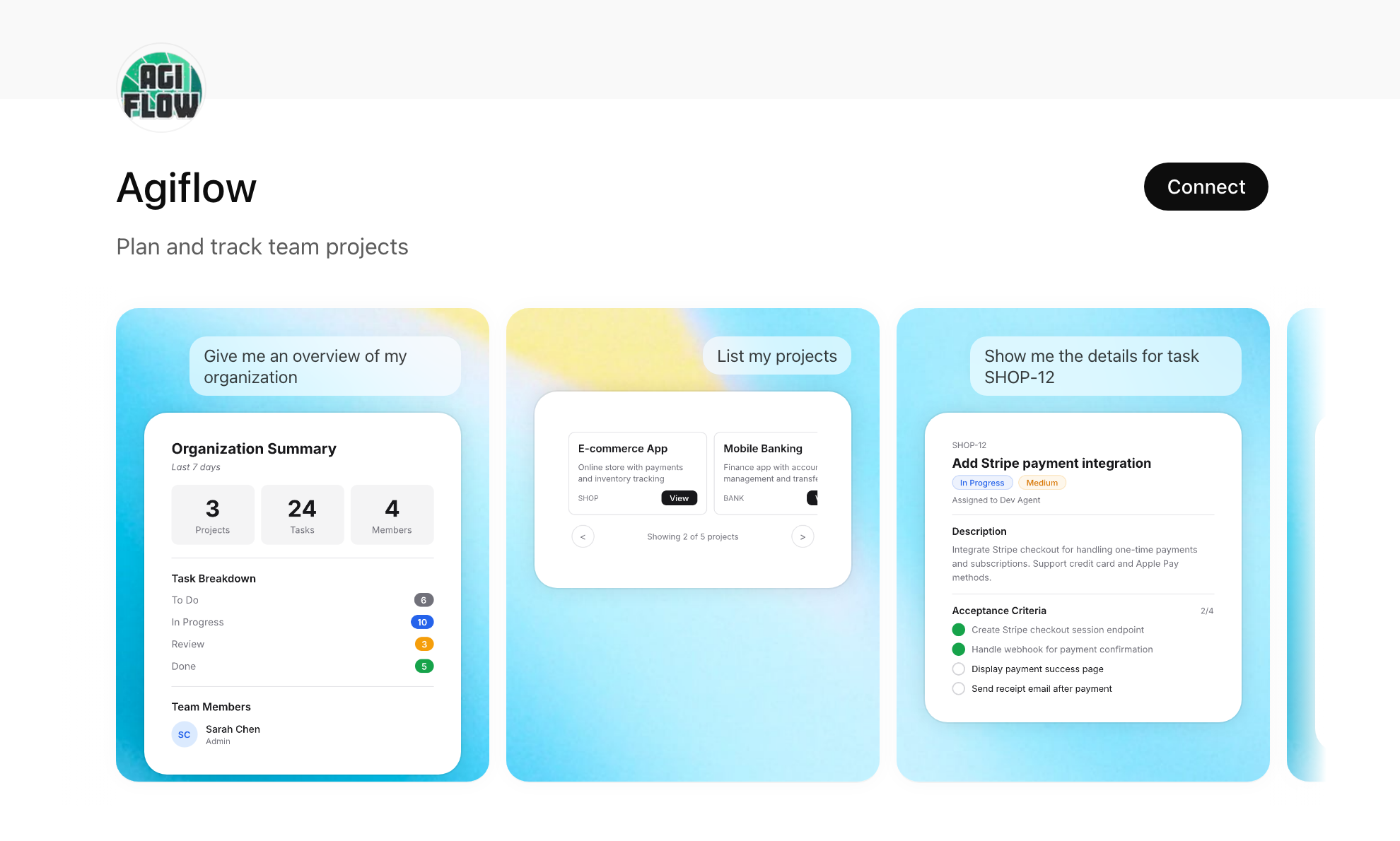
Ask ChatGPT for organization summaries, project status, task details, and work-unit context.
Create and update work
Create tasks, move work through the team’s configured workflow, and add comments from the conversation.
Use scoped access
Authorize only the workspace, project, or task ChatGPT should use — not your whole board by default.
See structured responses
Agiflow can return structured content and ChatGPT app widgets for supported project views.
Good to know
- ChatGPT access is limited to the workspace, project, or task you authorize.
- Agiflow provides tools, skills, and widgets to external AI clients; it does not run or host AI agents.
- MCP member tools manage AI-agent members only, not human team-member administration.
- Workflow statuses are defined per organization, so your columns may differ from another team’s.
Connect Agiflow to ChatGPT
Use the published Agiflow app in ChatGPT. You do not need to paste a raw server endpoint for this flow.
ChatGPT app setup
- 1
Open the Agiflow app page
Select “Open Agiflow in ChatGPT”, or find Agiflow from ChatGPT Apps.
- 2
Connect Agiflow
On the ChatGPT app page, select Connect. Sign in to Agiflow if prompted, then choose the workspace or project ChatGPT can use.
- 3
Start a ChatGPT conversation
Continue from the app page once authorization completes.
- 4
Confirm ChatGPT can see your board
Ask: “Show me the projects in my Agiflow workspace.”
Optional starter prompts
- What tasks need attention today?
- Create a task for the launch email and add the next steps.
- Summarize the current status of my active project.
Need screenshots? Follow the full ChatGPT setup guide.
Frequently asked questions
What is the Agiflow ChatGPT integration?
The Agiflow ChatGPT integration connects ChatGPT to Agiflow’s MCP server through the published ChatGPT app, letting ChatGPT work with the project context you authorize.
How do I connect Agiflow to ChatGPT?
Open the Agiflow app in ChatGPT, select Connect, sign in to Agiflow if prompted, choose the workspace or project ChatGPT can use, then start a conversation.
What can ChatGPT do after I connect Agiflow?
ChatGPT can inspect authorized project context, create tasks, update work, add comments, and summarize project status using Agiflow tools and widgets.
Can ChatGPT access all of my Agiflow data?
No. ChatGPT only receives the Agiflow scope you authorize. Agiflow provides tools to external AI clients and does not run agents itself.
Build your own Agiflow integration
Agiflow is built for AI clients that need scoped project context, structured tool calls, and interactive project views.
Explore AI client setup