How-to guide
How to store project secrets
Create environments, add secrets, and manage permissions so your AI assistant can use them safely.
Published
Prerequisites
You need Owner or Admin access to an Agiflow project, plus a basic understanding of why your project needs environment variables or API keys.
Create an environment
An environment groups secrets by stage — such as Development, Staging, or Production — so the right values are used in the right context.
Step by step
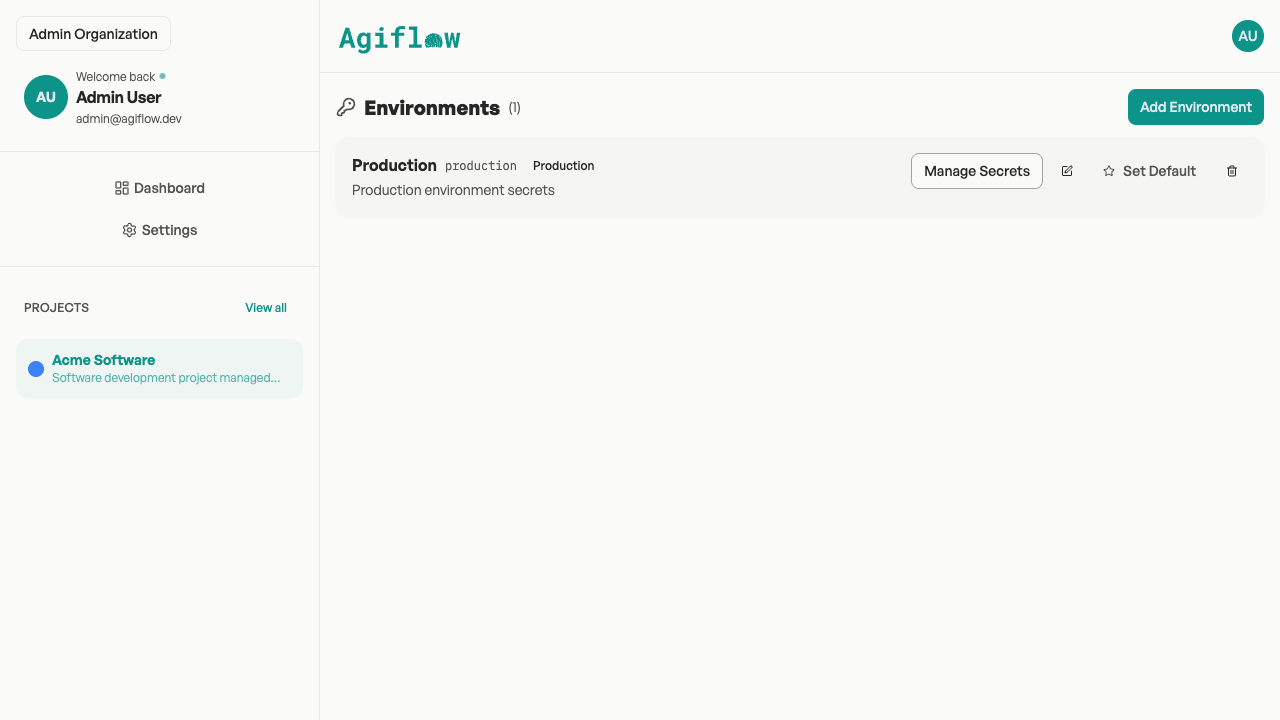
1. Open your project and select Environments.
2. Click Add Environment.
3. In the Add Environment dialog, fill the fields:
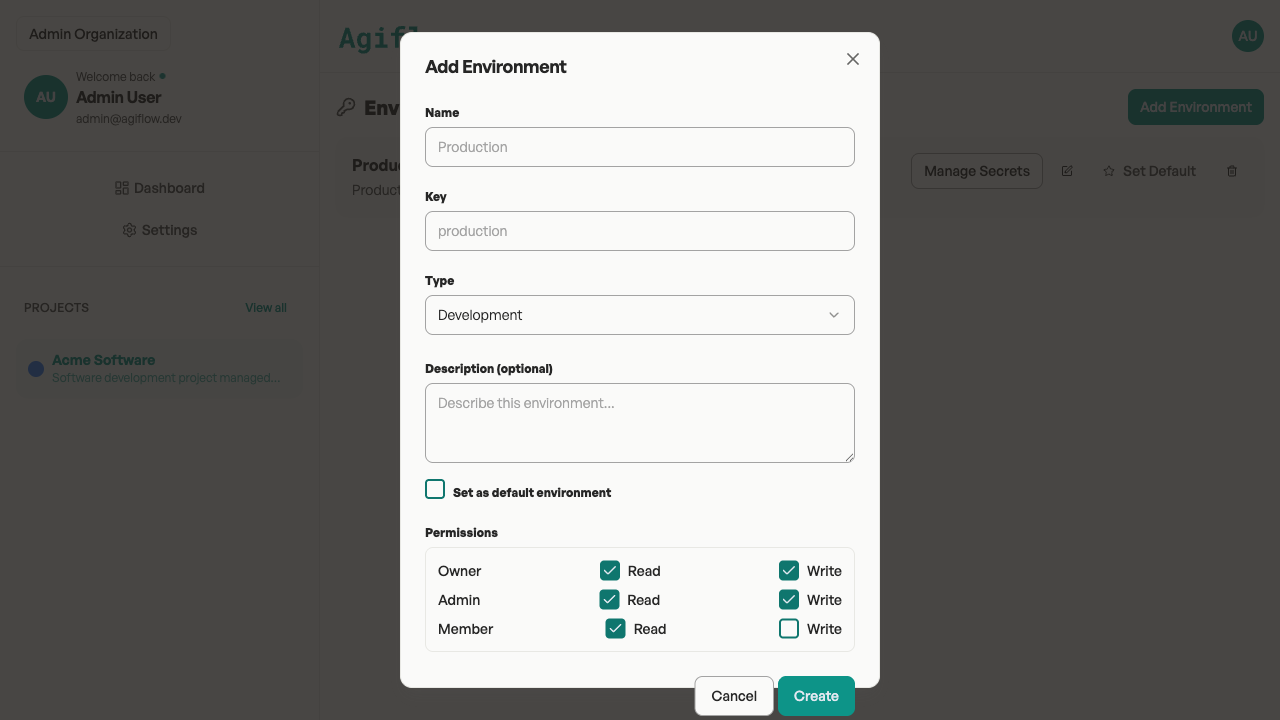
- Name — a display name such as "Production".
- Key — a lowercase identifier using only letters, numbers, dashes, and underscores, such as
production. - Type — choose Development, Staging, Production, or Custom.
- Description (optional) — add context if others will manage this environment.
- Set as default environment — check this if this should be the default for new operations.
Permissions
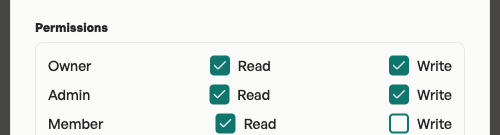
Under Permissions, set Read and Write access per role:
- Owner — Read and Write
- Admin — Read and Write
- Member — Read only
4. Click Create.
The new environment appears in the list with its type badge and a Manage Secrets button.
Add a secret to an environment
Secrets are encrypted at rest. You can store sensitive values or plain configuration variables.
Step by step
1. From the Environments list, click Manage Secrets on the environment you want.
2. Click Add Secret.
3. In the Add Secret dialog, fill the fields:
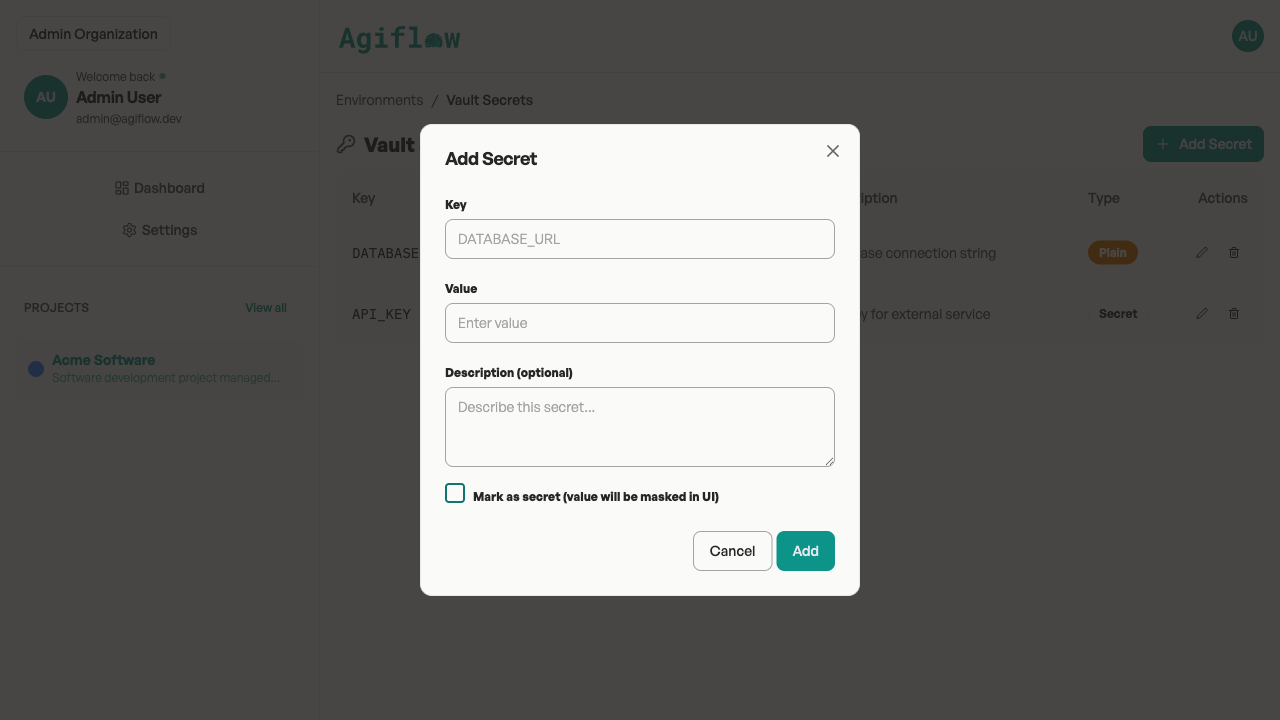
- Key — the variable name, such as
DATABASE_URL. - Value — the secret or configuration value.
- Description (optional) — note what this secret is for.
- Mark as secret (value will be masked in UI) — check this to hide the value behind
***SECRET***in the table.
4. Click Add.
The secret appears in the Vault Secrets table with its Type badge: Secret if masked, or Plain if visible.
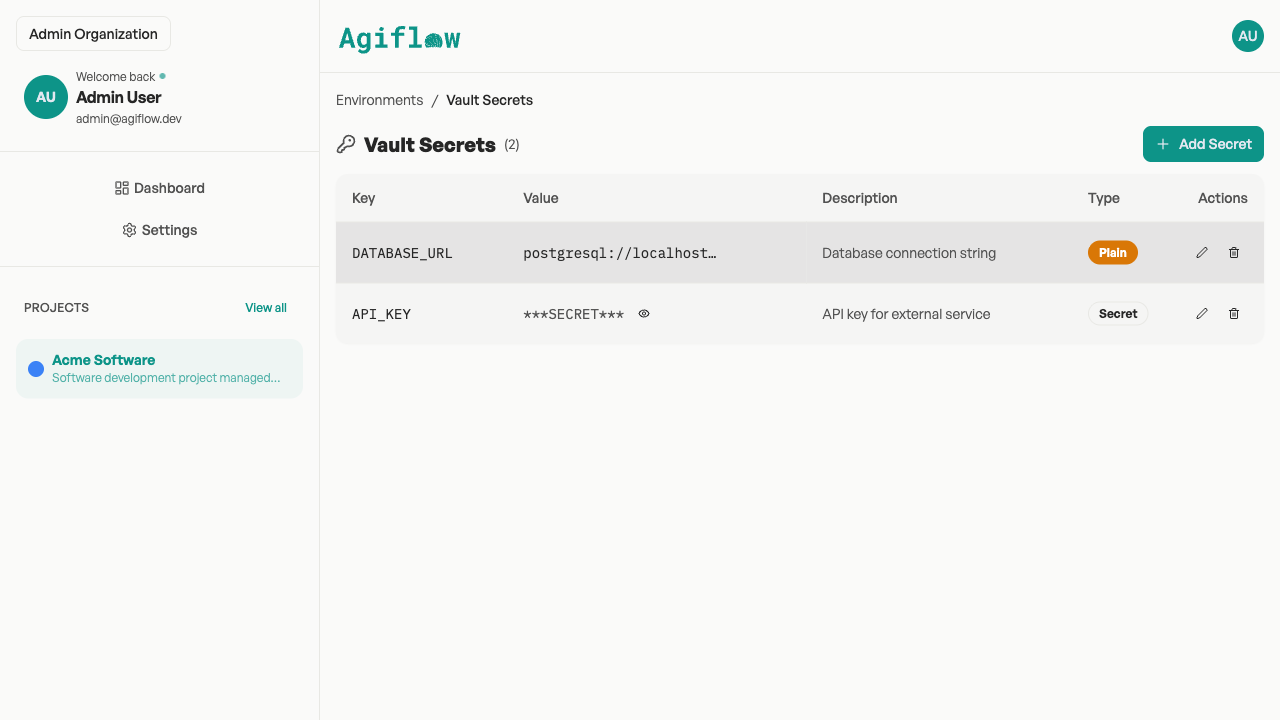
If you need to update a value later, click the edit icon on the row and enter the new value in the Edit Secret dialog.
Manage environment permissions
Permissions control who can view or change secrets in an environment.
Read
Lets permitted roles list and view vault entries. Members with Read can see secret keys, descriptions, and type badges. Values marked as secret are always masked as ***SECRET*** in the dashboard and in API responses.
Write
Lets a role add, edit, and delete secrets. Only Owners and Admins have Write by default.
If you want Members to manage secrets, edit the environment and grant Write under Permissions.
Use secrets with your AI assistant
Once secrets are stored, your AI assistant can read them from the default environment when working on tasks.
Say something like
The assistant reads secrets through an internal execution context that is separate from dashboard Read/Write permissions. This lets the assistant use actual secret values during tasks while the dashboard continues to mask them for safety.