How-to guide
Start from a project template
Agiflow projects can start from a template or from scratch. Templates give you a pre-built board with custom status columns, starter tasks, and sometimes AI agents tailored to a specific workflow. This guide shows how to pick a template, name your project, and understand what gets created.
If you prefer a completely empty board, choose Blank Project. It uses the default status columns — Planning, Todo, In Progress, Testing, Review, Done, Blocked, and Cancelled — and no starter tasks.
Published
01 — Pick a template
Choose the workflow that matches your goal
Open the template picker from onboarding or the Projects dashboard, then select Blank Project, Marketing, Sales, or Software to match what you are working on.
You will see the template picker in two places: during onboarding, after you create your organization; and any time later by clicking New Project on the Projects dashboard.
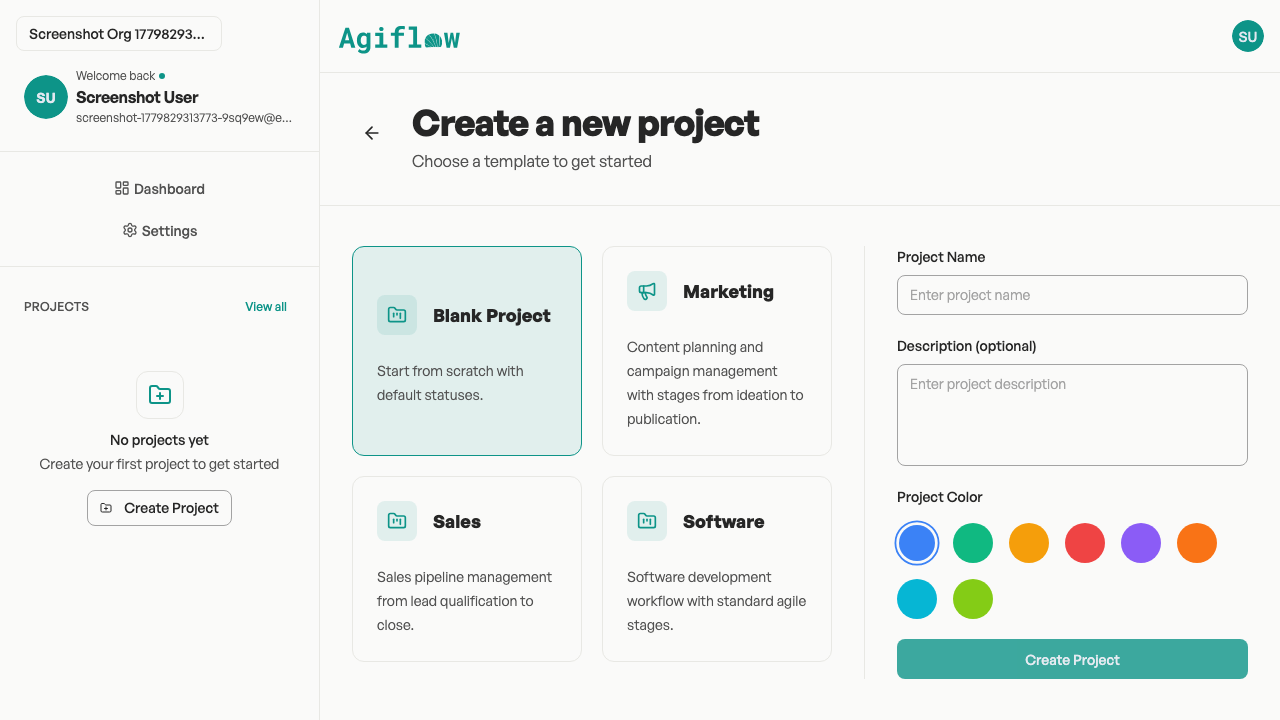
Blank Project
Start from scratch with default statuses. Best if you want to build your own workflow.
Marketing
Content planning and campaign management. Statuses from Ideation to Published.
Sales
Pipeline management from lead capture to close.
Software
Standard agile workflow with Planning, Todo, In Progress, Testing, Review, and Done.
Each card shows an icon, the template name, and a one-line description. Click the card that matches what you are working on. You can change your mind afterward by clicking Back to templates.
02 — Name and describe your project
Fill in the details and create
After you choose a template, enter a project name and optional description, confirm the template badge, then click Create Project to build your board instantly.
After you select a template, the form asks for two things:
- Project name — Required. Keep it short and specific, for example "Q2 Marketing Campaign" or "Acme Website Redesign".
- What's it for? — Optional. A brief description helps your AI assistant understand the project goals.
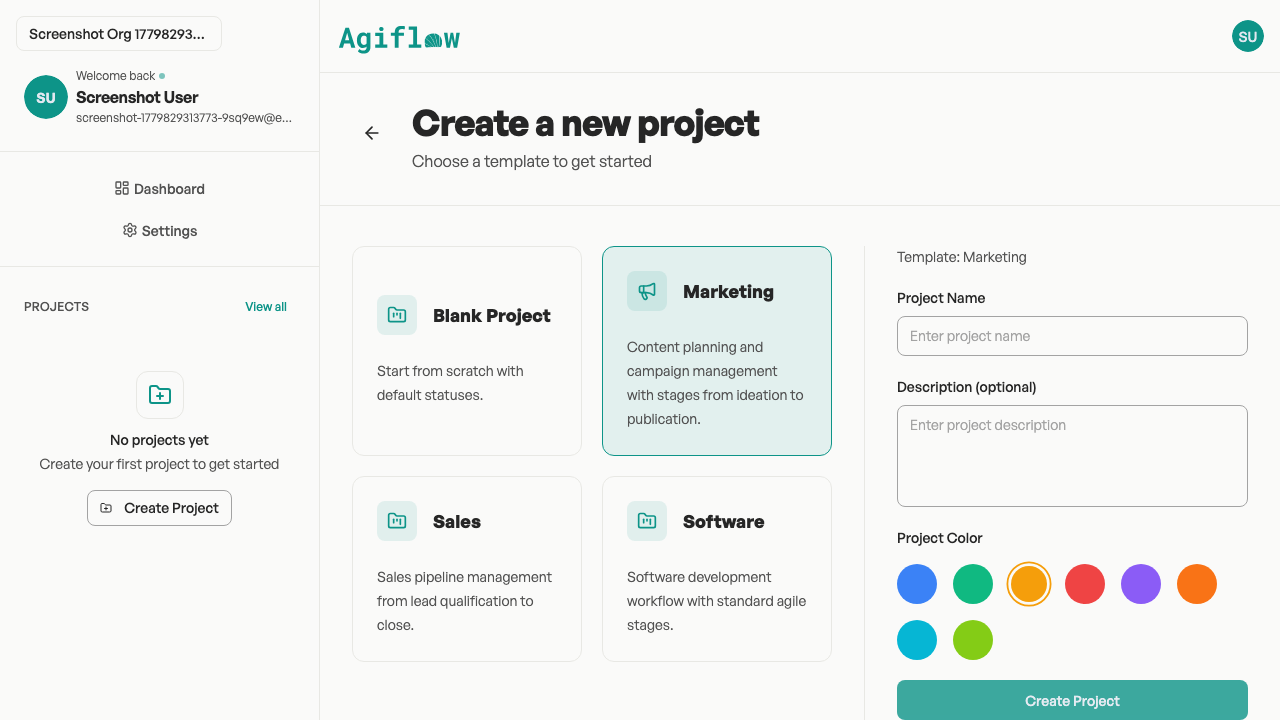
If you chose a template other than Blank, a badge above the form shows the selected template name so you know what will be included. Click Create Project. The board is created immediately and you are taken to it.
03 — What you get
Custom statuses, starter tasks, and agents
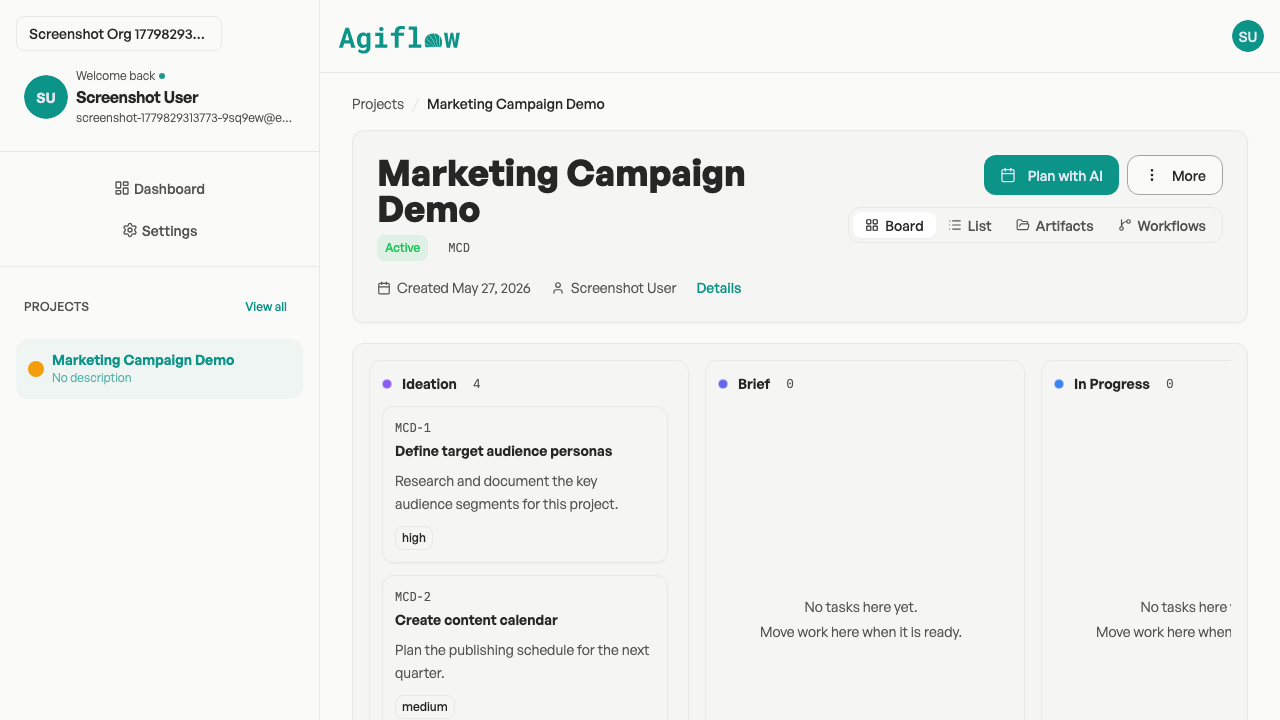
Each template populates your new board with a specific set of status columns, pre-created tasks, and sometimes dedicated AI agents ready to help.
Exactly what appears on your new board depends on the template you chose.
Blank Project
- Statuses: Planning, Todo, In Progress, Testing, Review, Done, Blocked, Cancelled
- Starter tasks: None
- Agents: None
Marketing
- Statuses: Ideation, Brief, In Progress, Review, Approved, Published, On Hold
- Starter tasks: Define target audience personas; Create content calendar; Draft brand voice guidelines; Set up analytics tracking
- Agents: Content Strategist, Social Media Manager
Sales
- Statuses: Lead, Qualified, Proposal, Negotiation, Closed Won, Closed Lost
- Starter tasks: Define ideal customer profile; Create pitch deck template; Map out objection-handling playbook; Set up follow-up cadence
- Agents: Sales Rep, Account Manager
Software
- Statuses: Planning, Todo, In Progress, Testing, Review, Done, Blocked, Cancelled
- Starter tasks: Set up project repository; Define acceptance criteria for MVP; Create initial backlog
- Agents: None
The statuses and tasks above make the most sense once you know how Agiflow organizes work into projects, work units, and tasks. See How your board is organized for a quick overview.
Ready to work?
Your board is set up. The next step is to ask your connected AI assistant to help with a task, or to add more tasks and work units yourself.