How-to guide
Manage projects and tasks on mobile
Published · Last updated
Use the Agiflow mobile app to check project progress, review tasks, move work forward, and handle inbox items from anywhere.
By the end, you will know how to select a project, inspect its progress, move tasks between statuses, and find inbox items through the verified entry point.
Quick start
To manage projects and tasks on mobile, open the Agiflow app and use the Projects tab to browse projects and drill into progress. Use the Board tab to review tasks by status and move them forward. Handle inbox items by tapping the attention banner on the Home screen — Inbox is not a visible tab, so this banner is the entry point.
- Projects tab → project card → project overview with stats and work units
- Board tab → lane tabs → task card → move or inspect
- Home attention banner → Inbox → approve, review, or retry
Select a project
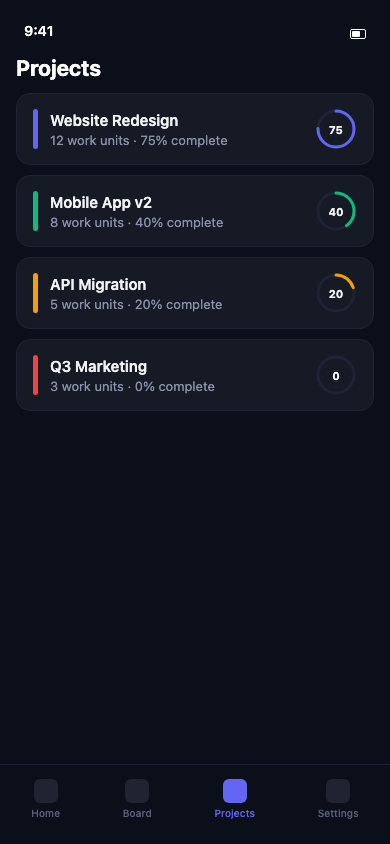
To begin managing work on mobile, open the Projects tab in the bottom navigation bar, then tap a project card to open its overview and review progress, tasks, and work units.
You should see a screen titled Projects with a scrollable list of project cards.
Each card shows:
- The project name
- A colored accent bar on the left
- The number of work units inside the project
- A circular progress ring showing the percentage of work completed
Tap any project card to open its Project Overview screen.
Review project progress
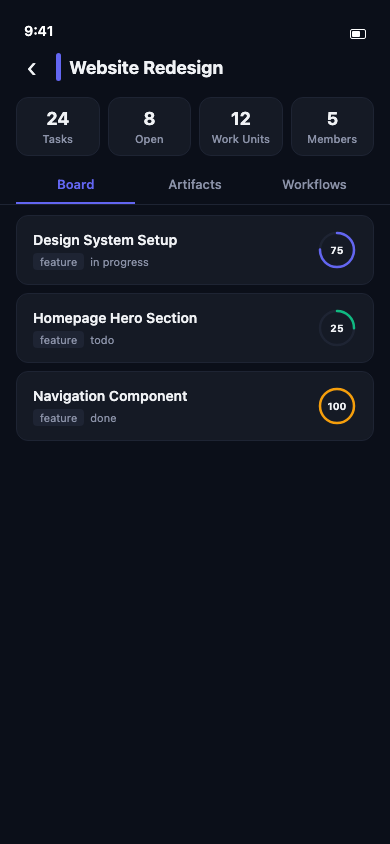
The Project Overview screen opens with a header showing the project name, a back button (‹), and a colored accent bar. Below the header you should see a stats row and three tabs.
Stats row
The stats row shows four counts at a glance:
- Tasks — total tasks in the project
- Open — tasks not yet completed
- Work Units — total work units
- Members — people on the project
Board, Artifacts, and Workflows tabs
The overview has three tabs. Board is active by default.
- Board — shows work unit cards for this project. Each card displays the work unit title, type tag, status, and a circular progress percentage. If the project has no work units yet, you should see the empty state message "No work units".
- Artifacts — shows project files with search and type filters.
- Workflows — shows workflow run history for the project.
Tap any tab to switch views. On the Board tab, pull down to refresh the data.
Move a task
To update a task's status in Agiflow mobile, open the Board tab and tap the move button on a task card, or open the Task Detail screen and use the bottom action bar — both open the same Update Status bottom sheet.
Move from the board
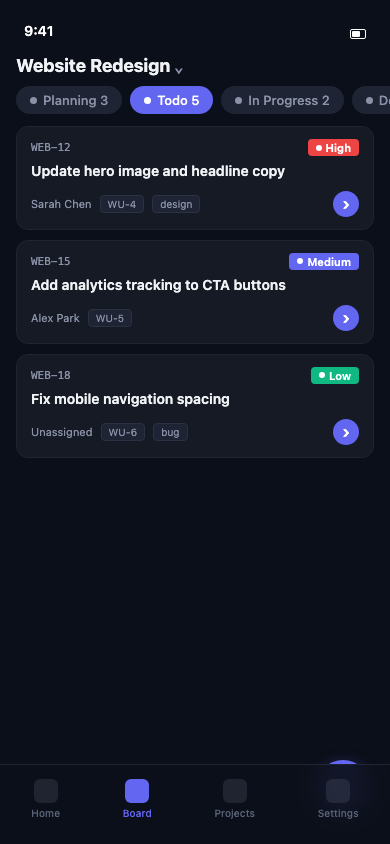
Tap the Board tab in the bottom navigation bar. At the top you should see the name of the currently selected project with a downward chevron — tap it to switch projects if needed.
Below the project name you should see a horizontal row of lane tabs such as Planning, Todo, In Progress, and Done. Each tab shows a count of tasks in that status. Tap a lane to view the tasks inside it.
Tasks appear as cards. Each card shows:
- The task slug (for example,
PROJ-12) - A priority badge
- The task title
- The assignee name
- The work unit slug
- Any tags
On the right side of each card you should see a circular button with a right arrow (›). Tap it to open the Update Status bottom sheet.
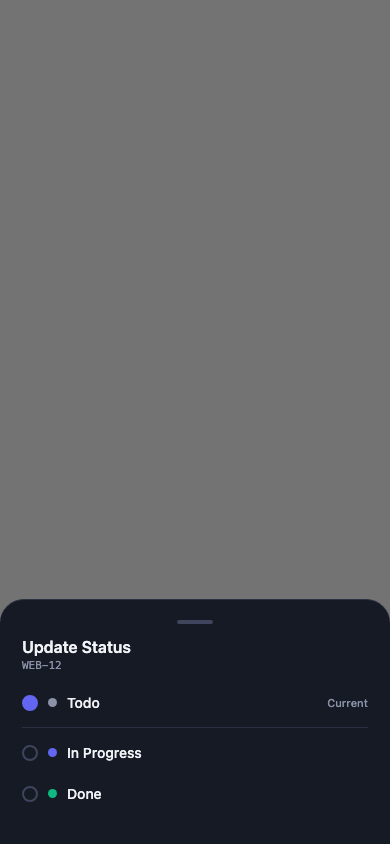
The bottom sheet shows the task slug at the top, your current status marked with a filled radio button, and a list of allowed target statuses. Each target status has an empty radio button and a colored dot. Tap the status you want to move the task into. The sheet closes automatically once the move completes.
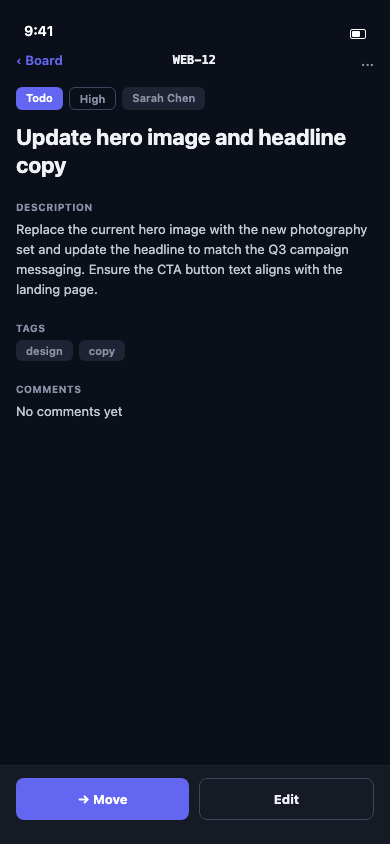
Move from task detail
You can also move a task after opening its detail view. From the Board tab, tap the body of a task card (not the › button) to open the Task Detail screen.
The detail screen shows:
- A back button (
‹ Board) and the task slug in the header - Status, priority, and assignee badges
- The task title
- A Description section
- A Tags section (if any tags exist)
- A Comments section
At the bottom of the screen you should see an action bar with two buttons: → Move and Edit.
Tap → Move to open the same Update Status bottom sheet. Choose the target status and the task moves immediately.
Find inbox items
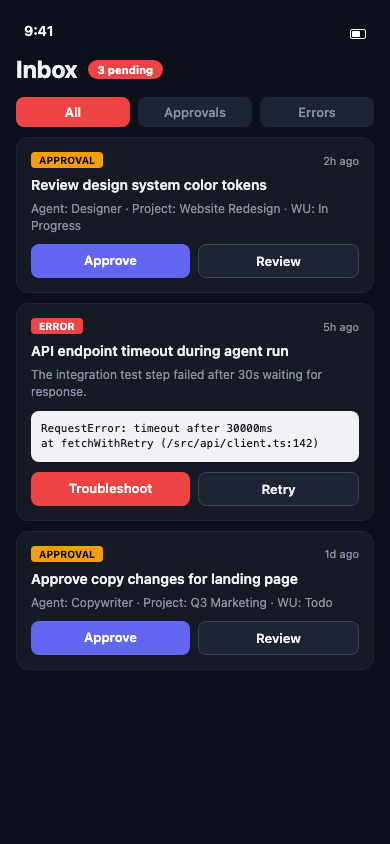
To find inbox items in Agiflow mobile, look for the attention banner on the Home screen and tap it to open the Inbox, where you can filter by All, Approvals, or Errors and act on each item immediately.
Inbox is not a visible tab in the bottom navigation bar. The entry point is the attention banner on the Home screen.
When items need your input, the Home screen shows a banner near the top saying something like "3 items need your input". Tap this banner to open the Inbox screen.
The Inbox screen is titled Inbox and shows a count badge such as "3 pending" when items are waiting. Below the header you should see three filter tabs:
- All — every activity item
- Approvals — tasks assigned for your approval
- Errors — agent errors that need attention
Tap any filter tab to narrow the list.
Approval cards show the item title, when it arrived, and two action buttons: Approve and Review.
Error cards show the item title, any error description, and two action buttons: Troubleshoot and Retry.
If there are no activity items, you should see the empty state "No activity items".
What to do next
You now know how to browse projects, check progress, move tasks, and handle inbox items from the mobile app. Here is what to try next:
- Return to the Home screen and check if the attention banner has cleared after handling inbox items.
- Open the Board tab, select a project, and review tasks in the Todo lane.
- Read the getting started guide if you are new to the mobile app, or learn how your board is organized to understand projects, work units, and status lanes.