How to upgrade when you hit a plan limit
Published
If you hit a plan limit in Agiflow, open Settings → Billing → Credits to see which quota is full, then upgrade your plan or remove unused resources to unblock your work. Hitting a limit is frustrating — this guide walks you through diagnosing the block, upgrading, and cleaning up step by step.
01 — Diagnose
Find out which limit you hit
Go to Settings → Billing → Credits and look at the Usage dashboard to see which of the four quotas is at its limit.
- 1
Open your organization Settings.
- 2
Go to Billing. The Usage dashboard appears on the Credits & Usage page.
- 3
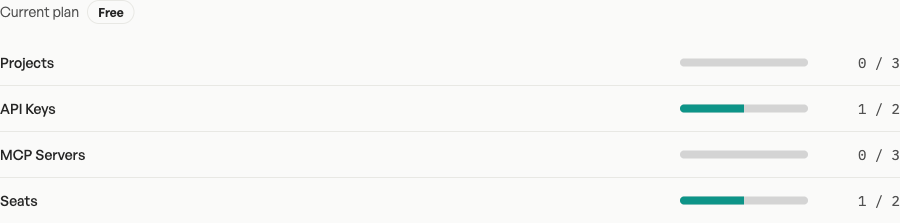
Look at the Usage dashboard. You will see four rows:
- Projects
- API Keys
- MCP Servers
- Seats
Each row shows a progress bar and a fraction like 2 / 3. If the bar is full or the fraction reads the same number on both sides, that is the limit you have reached.
Tip
The progress bar turns red when you are at or above 80% of a limit, so you can spot trouble before it blocks you.
02 — Upgrade
Upgrade your plan
If you need more of a resource right away, upgrading is the fastest fix.
From the block screen
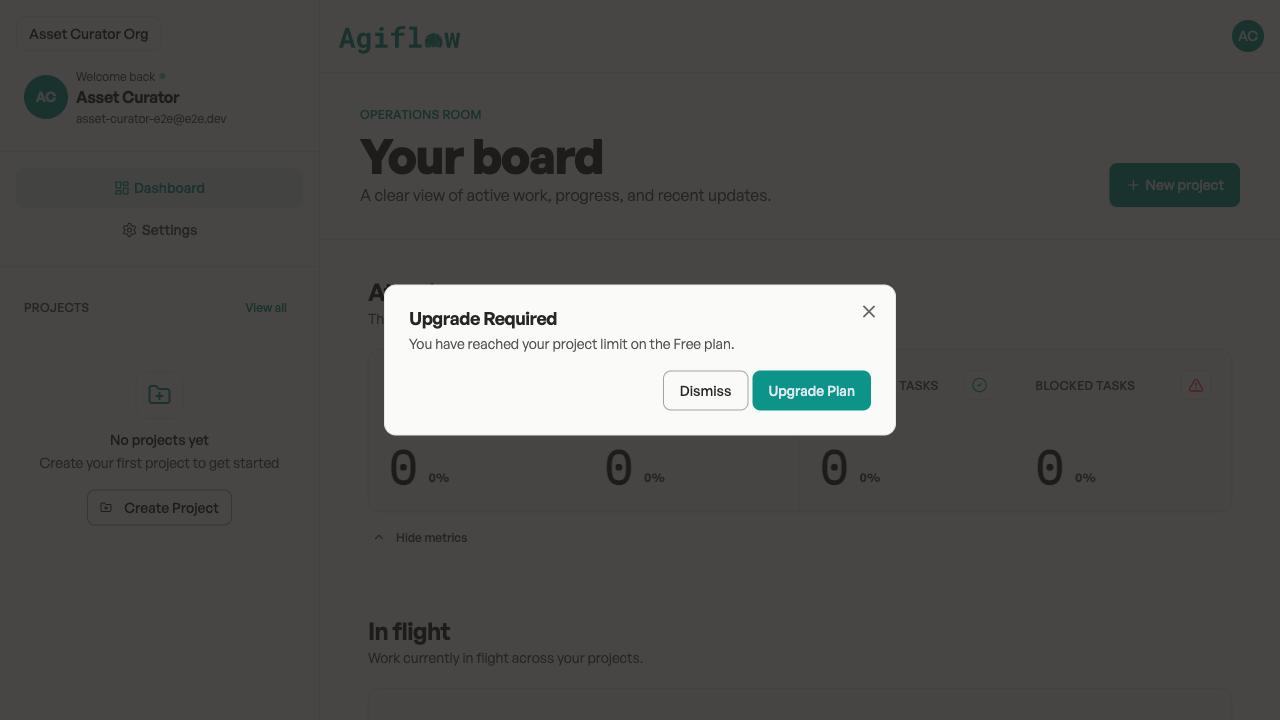
When a limit stops you, an Upgrade Required dialog appears with a message explaining what happened. Click Upgrade Plan.
From the billing page
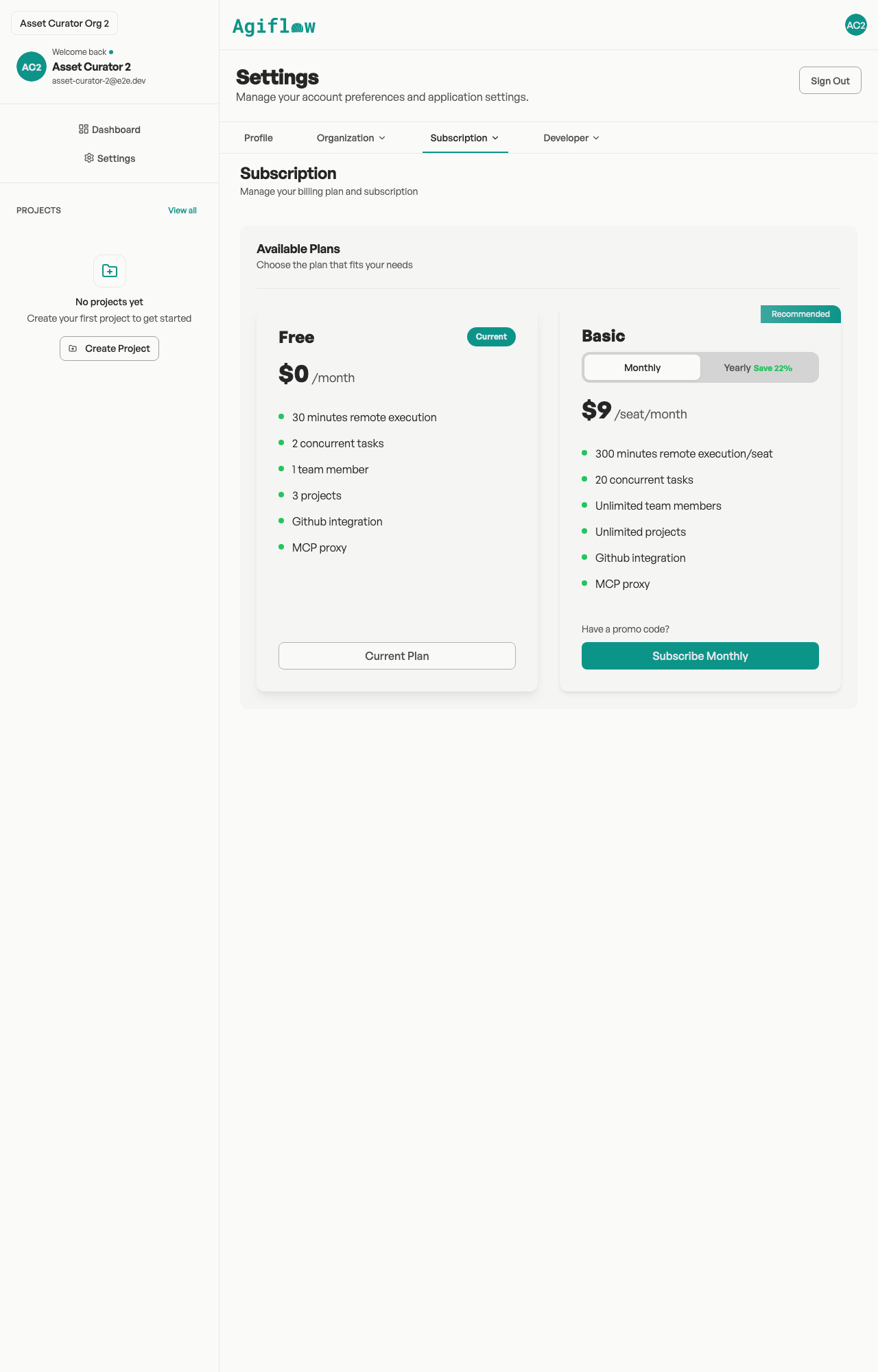
In Settings → Billing → Subscription, compare the Free and Basic plans.
Choose a billing interval
Monthly
$9 per seat per month
Yearly
$7 per seat per month (billed as $84 per seat per year)
Bottom line: Choose Monthly for flexibility, Yearly to save 22% per seat.
Click Subscribe Monthly or Subscribe Yearly. Upgrading removes the limits on Projects, API Keys, MCP Servers, and Seats immediately.
03 — Alternative
Reduce your usage instead
If you do not want to upgrade yet, you can free up space by removing items you no longer need.
Projects
- 1.
Go to Dashboard → Projects.
- 2.
Open the three-dot menu on the project card you want to remove.
- 3.
Choose Delete.
- 4.
In the confirmation dialog, click Delete project.
API Keys
- 1.
Go to Settings → Developer → API Keys.
- 2.
Click the trash icon next to the key you want to remove.
- 3.
Confirm Delete API Key.
MCP Servers
- 1.
Go to Settings → Organization → MCP Servers.
- 2.
Click the trash icon on the server card you want to remove.
- 3.
Confirm the deletion when prompted.
Seats
- 1.
Go to Settings → Organization → Members.
- 2.
Open the three-dot menu on the member row you want to remove.
- 3.
Choose Remove Member.
After you reduce usage below the limit, try the blocked action again.
04 — Result
What happens next
Limits are checked in real time, so the block lifts immediately after you upgrade or free up usage.
If you are still stuck, check the Usage dashboard again to confirm the numbers have changed, or reach out to support.
Need more help?
Review your current usage or reach out to support if the block persists.